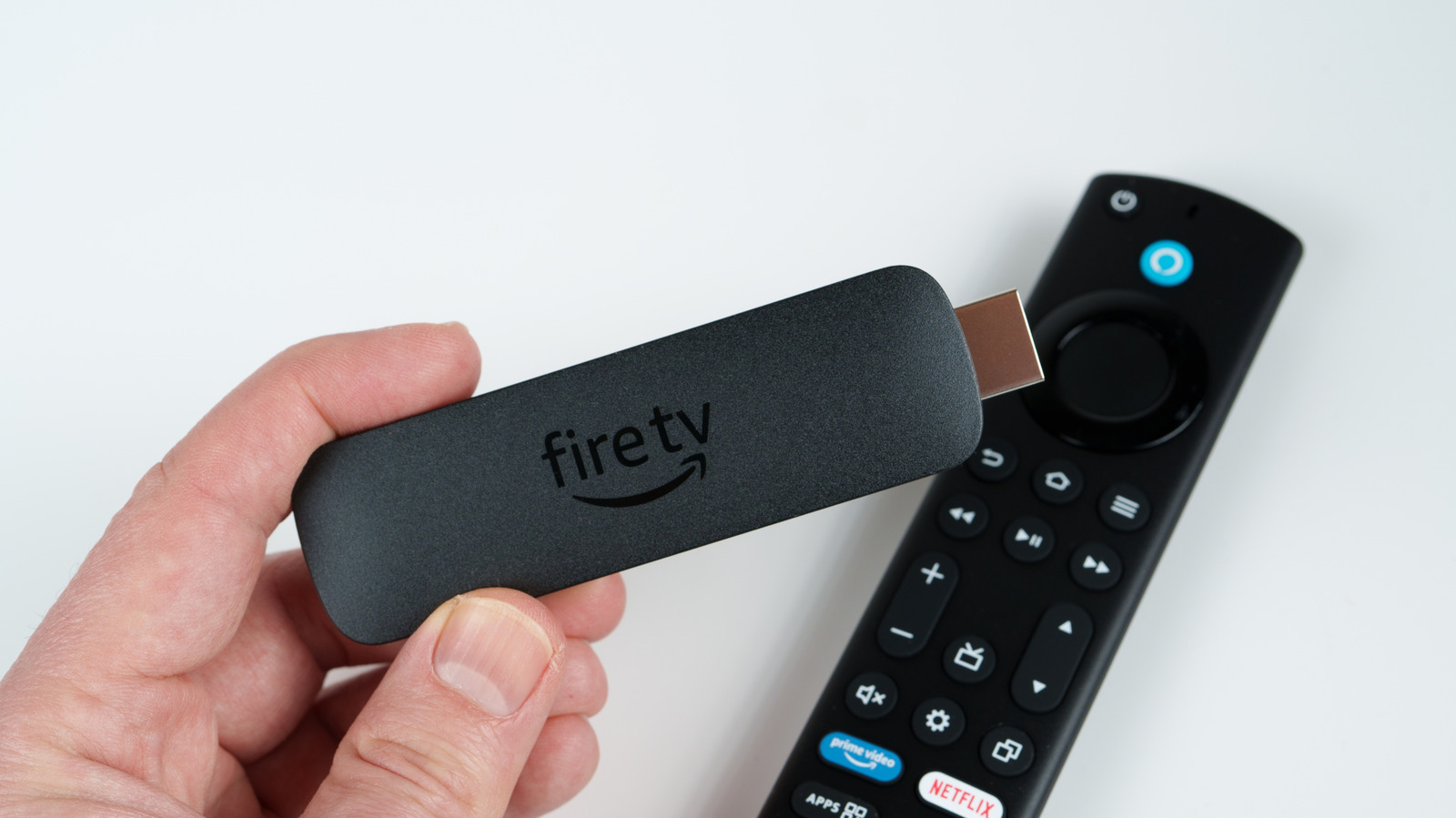
The Amazon Fire TV Stick is certainly a handy gadget, being able to turn any old TV into a smart TV that can run YouTube, Netflix, and any other app you might want to use. For those who don’t want to buy an expensive new smart TV, the Fire TV Stick is a more affordable way to get the same experience. There are some things that you should know before buying a Fire TV Stick, though, including the common issues that Fire TV Stick users run into.
We went through online forums to see what issues and errors Amazon Fire TV Stick users experience the most often, and then tested ways of fixing them. These include common error messages, what they mean, and how to get rid of them, as well as relevant issues like low storage that are easy to run into. We also found out some mistakes that people often make that lead to problems. Fortunately, despite there being a lot of common problems that Amazon Fire TV users face, troubleshooting these issues is fairly straightforward.
1. Storage problems
The Fire TV Stick’s great most of the time, until you run into the dreaded Low on Storage error message. This might not be as big a problem for those using a Fire TV Stick 4K Max due to its increased 16GB storage, but users who have older models, the Fire TV Stick Lite, or the Fire TV Stick 4K have to make do with just 8GB.
The easiest way to solve storage issues on your Amazon Fire TV Stick is to increase the storage through an external flash drive, which you can do by getting a micro-USB to USB OTG adapter, such as one from AuviPal. Plug the adapter into the power slot, plug the power cord itself into the other side, and put a flash drive appropriate for your storage in the remaining OTG slot. You can power up your Fire TV now and open up My Fire TV to check if the external storage works. You can then format it as external storage and move any app here through Manage Applications in Applications, and select the apps that you want to move. This is an excellent workaround and what we recommend for most people, as well as a good use for your Fire TV Stick’s micro-USB port.
Furthermore, you can clear your Fire TV’s app cache. To clear this cache, go to the Fire TV Stick Settings. From here, move to Applications and then Manage Installed Applications. Select either a specific app or select Files and clear all cache from there. If you’re still facing storage issues, you can choose to use YouTube or other streaming apps on the browser instead of downloading them on the device. If all else fails, performing a factory reset should fix the issue.
2. Laggy and slow performance

If you’ve had your Fire TV Stick for a while (or even if you’ve just bought one, really), it’s not unusual for users to start seeing signs of lag and a slowed performance. This might be in the form of slower loading times, having to click the same thing multiple times for it to work, or even just a delayed powering on.
The first step in solving all of these is simple: simply restart the device. This may seem straightforward, but many users aren’t aware that simply turning their TV off doesn’t automatically shut the Fire TV Stick off alongside it. In order to do so, you’ll have to turn it off from within the Fire TV Stick UI itself or by unplugging the physical Fire TV Stick from the TV. After restarting it, you’ll often find that the performance is much better.
If this doesn’t fix the issue, there are a number of things you can try. Turning off background processes is one of the best Fire TV Stick tricks to make it feel new, as there are a ton of things going on that are supposed to make your experience more seamless, but can end up doing the opposite. For this, you have to go to Settings, then My Fire TV, and then About. Here, you unlock the Developer Options by clicking the device name seven times. Once unlocked, go to Developer Options and set Background Process Limit to No Background Processes. This should make your Fire TV Stick’s memory prioritize whatever it is you’re viewing, reducing lag.
3. Blanking out and showing a black screen
If your Fire TV Stick often fails to load properly and shows a black screen, despite starting up fine, then there’s likely an issue within the system or with the power supply. As we discussed earlier, many people often plug their Fire TV Stick’s power directly into the TV’s USB port. This, in many cases, doesn’t supply the TV Stick with enough power, resulting in a slowed performance and other issues.
Fixing this is easy, as plugging the Fire TV Stick into a wall socket is often all you need. This will supply enough power to the device and ensure the update passes through, and apps load fine. If this doesn’t work, there might be an issue with the power cord. To fix this, you can simply use another power cord that you know supplies enough power.
If this doesn’t solve the issue, you can try some general troubleshooting steps to figure out and deal with the issue. You can ensure the system has enough free storage to function properly or turn off background processes so it redirects its working memory to the base functions. We’ve talked about these steps in earlier entries, so refer to those for instructions.
4. Update and Wi-Fi issues
Your Fire TV Stick can show signs of lowered performance in many ways. If your specific TV Stick is slow mostly when an app starts loading, or if it’s stuck in a perpetual update loop whenever you’re performing an OS update, chances are that it simply isn’t getting enough power supplied to it, or there’s simply an issue with the Wi-Fi.
One of the most common mistakes that Fire TV Stick users make is powering the Fire TV Stick through the USB port on your TV. Certain TVs simply don’t output enough power through these to run a Fire TV Stick, which is why switching the power source to an electrical outlet on the wall can fix these issues.
If the issue isn’t power, then it’s likely that there’s a problem with the connection. Either your Wi-Fi itself isn’t working properly, or it does work, but the signal isn’t being transmitted to your Fire TV Stick. To fix Wi-Fi issues on your Fire TV Stick, first check if it’s even connected to the Wi-Fi. If it is, you can try running an online speed test on the Fire TV browser to see if there’s any issue with your connection. If there’s no issue with the Wi-Fi but you still can’t get past updating, you might just not have enough space left on the device. We’ve already covered how to deal with low storage above, so refer to that, or simply factory reset your device if nothing else works.
5. Audio out of sync
You’ve just booted your Fire TV Stick, it’s not lagging, everything loads just fine, and when you open up an app to watch something, the video plays without issue. However, despite everything else working, the audio decides to be what betrays you this time.
Troubleshooting audio problems is much easier than many other common issues on the Fire TV Stick. First and foremost, ensure that you haven’t accidentally put your TV on mute and that any external audio source is plugged in. If you’re using a speaker or soundbar, you can go to your Fire TV Stick’s settings, Audio & Display, and then Audio Output. From here, turn your TV speakers off and set both ARC mode and Digital Audio Format to auto. If you’re using your TV’s built-in speakers instead, you can navigate to Audio Output again and check if the TV speakers are turned off. Turning them on should solve the issue in this case. If it doesn’t, you can troubleshoot the issue by selecting Audio & Video Diagnostics and then Troubleshoot Audio/Video Issues inside Audio & Display in the settings. From here, select “No Audio.”
If the audio works but doesn’t sync correctly with what’s playing on the TV, you can solve the issue by using the AV Sync Tuning. From the Audio option in Audio & Display, select AV Sync Tuning. From here, follow the on-screen instructions to adjust the audio output in accordance with what’s on the screen. After this is done, the audio on all your apps should be synced with the Fire TV video.