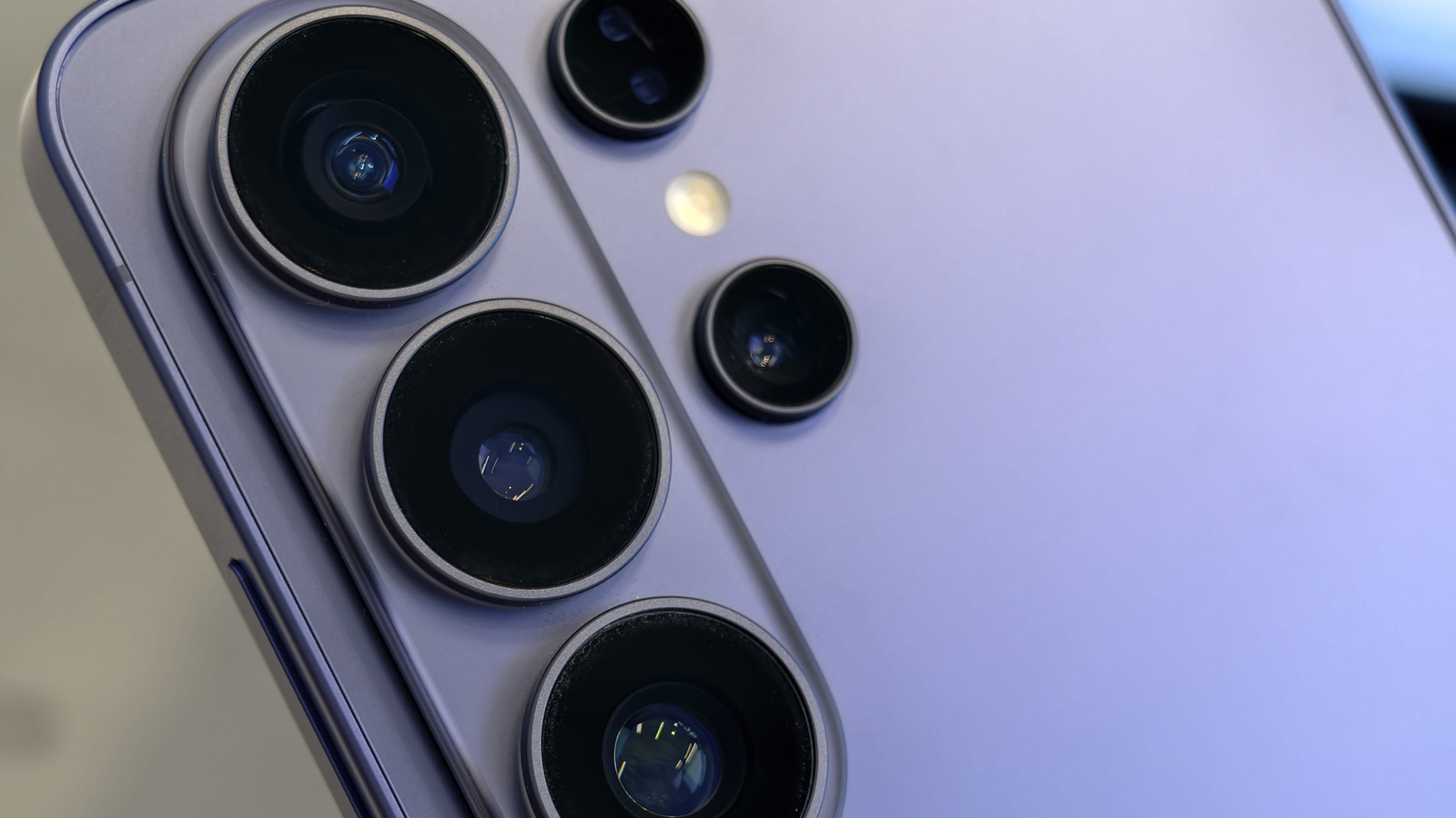
Samsung’s phone cameras and subsequent features are some of the best, especially if you like to dig in and fine-tune your shots after the fact. But sometimes, it’s much better, and easier, to take a quality shot from the get-go. No second-guessing, no after-edits, just a great shot, excellent lighting, and beautiful imagery. It turns out, tucked away in the camera settings, there are some things you can change to achieve precisely that. Whether you want a wide shot, want to capture with higher megapixels and in higher quality, or adjust the exposure on the fly, you can do a lot of these things before even pressing the shutter button.
If you’ve already played around with some of the camera settings, you might have encountered these options already. But if you’re just opening your phone and taking quick shots — or double-pressing that power button for the camera hotkey — and not adjusting anything at all, you may not even be taking advantage of your full camera’s specifications, especially on the Galaxy S25 or S26 phones. If that is the case, you’ll definitely want to change these four camera settings to improve your phone’s photo quality, even if only to give your personal library a visual fidelity boost.
Increase resolution for incredible shots
While devices like the Samsung Galaxy Z Fold 7 and Galaxy S26 Ultra have a whopping 200-megapixel camera for remarkable shots, they aren’t actually set to use the maximum resolution by default. In fact, if you’re snapping photos without touching any of the settings, you’re likely working with a resolution that’s significantly lower than you could be. Fortunately, changing to max resolution is easy to do.
Open your device camera, and in the top right, you should see four icons, one of which is “12M” (12 megapixels). Tap on it, and you should see additional options, such as 50M and 200M — for 50 megapixels and 200 megapixels, respectively. Choose one of the higher settings for better quality pics. The higher the resolution and quality, the more space each photo takes up, which is why this setting is lower by default. If you have another Galaxy series device below S25, this setting still exists and will provide comparable quality options.
You should also know that your Samsung device won’t preserve this setting each time you return to the camera, which means you have to keep selecting it if you want to use the higher resolutions. You can make this a permanent change by opening the menu (the four dots in a square in the bottom right) > settings (gear icon), then scrolling down to Settings to keep. Select the toggle next to High picture resolutions, and your chosen resolution should remain persistent.
Go Pro for ultimate control
Though it’s not a single setting by itself, more a shooting mode for the camera, if you haven’t explored the additional menus in the Samsung Camera app, you wouldn’t know about Pro mode. It allows you to use your phone camera like a real DSLR or pro-grade model. With it active, you can adjust the camera’s ISO, or light sensitivity, shutter speeds, aperture, white balance, focus, and more. Basically, it gives you direct access to fully customize each functional setting on your camera to get the perfect shot.
If you have any kind of experience with photography, you’ll love it, and if you’re just starting, you’ll find a lot of great stuff here. To set it up, make sure the camera app is open and select the More option at the very bottom right, next to Photo and Video. This will open a window where you can select the mode you want. Take note that there are other modes here, like Panorama, Slow Motion, Hyperlapse, and even Food. You can also take advantage of a unique Astrophoto feature for starry night sky shots, but you’ll need to install the corresponding app for that.
With that mode menu open, select the “Pro” mode, and you’re all set. You’ll notice the quick settings options will change, giving you the chance to adjust white balance, focus, ISO, and similar options. Feel free to experiment and play around with the settings to find the ideal shot.
Adjust exposure in dark or super bright settings
The default camera settings on a Samsung tend to skew towards the brighter side of the spectrum, meaning if you’re taking a shot in the bright sunlight or outdoors, you may end up with a washed-out image. You can actually adjust this easily by turning down the exposure, and in dark settings, you can do the opposite, turn up the exposure. Exposure basically adjusts how much light the camera sensor takes in. It can also totally make or break your photos, especially if you want more color and detail in a bright location.
Accessing these settings is fairly simple. Tap the menu button (four dots in the bottom right), then slide over until you see the plus or minus icon in a circle. Tap that, and you’ll be able to adjust exposure. A negative setting decreases light, while a positive setting increases it. If you’re in a bright area, it’s best to decrease it.
Slightly unrelated, but you can use the Galaxy S26 as a webcam with a high-quality mode, which significantly improves visual quality during calls, video conferences, and meetings. Coupled with the exposure settings and the various camera quality upgrades, it could be a better option to get clear video on those calls than a standard webcam.
Allow the camera to adjust to the environment
The Samsung Galaxy devices have a feature called Scene Detection, which allows the system to detect the current camera scene or environment and choose the appropriate color and contrast settings to optimize detail. To turn this on, within the camera app, tap the four-dot icon, the gear icon for settings, and then Intelligent optimization. Tap the toggle next to Scene optimizer to enable the feature. In this menu, you’ll also find another series of options to change how the camera prioritizes functions.
For example, it might sacrifice some quality to deliver faster shutter speeds. You can choose Maximum to prioritize visual fidelity and quality, Medium to prioritize a balanced experience with faster capture speeds, or Minimum to prioritize speedy shots with minimal processing — the latter is great for high-action movement shots where you need instant shutter speeds to freeze the motion.
Ultimately, now you know how to allow the camera to optimize for you, and with these settings on, you should be able to snap to your heart’s content and get excellent quality images, especially if you chose a higher picture resolution, as well. If you’re trying to record videos in dark environments and the camera isn’t automatically improving the image, there is a manual night mode option on the Galaxy S26 alongside the auto night mode – you can customize the various settings yourself.